



Präzise Herzfrequenz- & SpO₂-Überwachung mit MAX30102 Pulsoximeter auf Arduino
Komponenten und Zubehör
 |
|
× | 1 | |||
|
× | 1 | ||||
 |
|
× | 1 | |||
 |
|
× | 1 |
Über dieses Projekt
Intro
Hi, in diesem Tutorial verbinden wir den MAX30102: Pulsoximetrie- und Herzfrequenz-Monitor-Modul mit einem Arduino UNO Board und bauen dann ein Projekt zur BPM-Messung mit diesem Modul + OLED-Display und einem Summer.
BPM sind die „Schläge pro Minute“ und liegen bei einem normalen Menschen in Ruhe bei 65–75, Sportler können niedrigere Werte haben. SpO2 ist der Sauerstoffsättigungswert, und für einen normalen Menschen liegt er über 95 %.
Der MAX30102 ist in verschiedenen Modulen erhältlich, ich habe eine WAVGAT-Version – das ist kein Problem, solange der IC MAX30102 ist.
Komponenten
Hier sind die Dinge, die ich verwende:


Tests:
Die Codes, die ich im Tutorial nutze, sind ziemlich klar und stammen aus den Beispielen der Sparkfun_MAX3010x-Bibliothek.
Für den Code, den ich für OLED und Summer erstellt habe, ist es eine modifizierte Version des „HeartRate“-Beispiels. Er fordert Sie auf, den Finger auf den Sensor zu legen.

Sobald Sie den Finger auflegen, ruhig bleiben für eine Weile, bis Sie anfangen, die „Pieps“-Töne des Summers synchron zu Ihren Herzschlägen zu hören oder die OLED-Animation synchron dazu läuft, und dann können Sie einen korrekten BPM-Wert ablesen.
Hinweis: Im Code gebe ich tatsächlich den Durchschnitts-BPM aus, da er den Durchschnitt von 4 BPM-Werten bildet – das ist genauer, geben Sie ihm einfach etwas Zeit.

Bitmaps für das OLED erstellen
Das kleine Herz, das Sie sehen, ist ein Bitmap-Bild. Jedes Mal, wenn der Sensor einen Herzschlag detektiert, wechseln wir zu einem anderen Herz (groß) Bitmap für kurze Zeit – das vermittelt den Eindruck eines schlagenden Herzens zusammen mit einem Piepton vom Summer.
Hier sind die beiden Bitmaps im Code, die wir später aufrufen:

Um diese zu erstellen: Suchen Sie ein Bild (schwarz mit weißem Hintergrund) für was auch immer Sie auf dem Bildschirm sehen wollen – vergessen Sie nur nicht die Größe. Mein Display ist 128x32 px und die Bilder sind kleiner (32x32 px und 24x21 px).

LCD Assistant herunterladen und öffnen (wenige Schritte unten):


Und hier sind Ihre „Zahlen“:

Und so habe ich es im Code aufgerufen:
display.drawBitmap(5, 5, logo2_bmp, 24, 21, WHITE);Das bedeutet:
display.drawBitmap(Start x-Pos, Start y-Pos, Bitmap-Name, Breite, Höhe, Farbe);Und wie Sie im Code sehen, wird das eine aufgerufen, wenn ein Finger erkannt wird, und das andere, wenn ein Herzschlag detektiert wird.
Und los geht's – machen Sie, was Sie wollen.
Code
- MAX_BPM_OLED_Buzzer.ino
MAX_BPM_OLED_Buzzer.inoArduino
Modifiziert aus der SparkFun MAX3010x Bibliothek
/* This code works with MAX30102 + 128x32 OLED i2c + Buzzer and Arduino UNO
 * It displays the Average BPM on the screen, with an animation and a buzzer sound
 * everytime a heart pulse is detected
 * It's a modified version of the HeartRate library example
 * Refer to www.surtrtech.com for more details or SurtrTech YouTube channel */
 #include <Adafruit_GFX.h> //OLED libraries
 #include <Adafruit_SSD1306.h>
 #include <Wire.h>
 #include "MAX30105.h" //MAX3010x library
 #include "heartRate.h" //Heart rate calculating algorithm
 MAX30105 particleSensor;
 const byte RATE_SIZE = 4; //Increase this for more averaging. 4 is good.
 byte rates[RATE_SIZE]; //Array of heart rates
 byte rateSpot = 0;
 long lastBeat = 0; //Time at which the last beat occurred
 float beatsPerMinute;
 int beatAvg;
 #define SCREEN_WIDTH 128 // OLED display width, in pixels
 #define SCREEN_HEIGHT 32 // OLED display height, in pixels
 #define OLED_RESET -1 // Reset pin # (or -1 if sharing Arduino reset pin)
 Adafruit_SSD1306 display(SCREEN_WIDTH, SCREEN_HEIGHT, &Wire, OLED_RESET); //Declaring the display name (display)
 static const unsigned char PROGMEM logo2_bmp[] = {
 0x03, 0xC0, 0xF0, 0x06, 0x71, 0x8C, 0x0C, 0x1B, 0x06, 0x18, 0x0E, 0x02, 0x10, 0x0C, 0x03, 0x10,
 //Logo2 and Logo3 are two bmp pictures that display on the OLED if called
 0x04, 0x01, 0x10, 0x04, 0x01, 0x10, 0x40, 0x01, 0x10, 0x40, 0x01, 0x10, 0xC0, 0x03, 0x08, 0x88,
 0x02, 0x08, 0xB8, 0x04, 0xFF, 0x37, 0x08, 0x01, 0x30, 0x18, 0x01, 0x90, 0x30, 0x00, 0xC0, 0x60,
 0x00, 0x60, 0xC0, 0x00, 0x31, 0x80, 0x00, 0x1B, 0x00, 0x00, 0x0E, 0x00, 0x00, 0x04, 0x00,
 };
 static const unsigned char PROGMEM logo3_bmp[] = {
 0x01, 0xF0, 0x0F, 0x80, 0x06, 0x1C, 0x38, 0x60, 0x18, 0x06, 0x60, 0x18, 0x10, 0x01, 0x80, 0x08,
 0x20, 0x01, 0x80, 0x04, 0x40, 0x00, 0x00, 0x02, 0x40, 0x00, 0x00, 0x02, 0xC0, 0x00, 0x08, 0x03,
 0x80, 0x00, 0x08, 0x01, 0x80, 0x00, 0x18, 0x01, 0x80, 0x00, 0x1C, 0x01, 0x80, 0x00, 0x14, 0x00,
 0x80, 0x00, 0x14, 0x00, 0x80, 0x00, 0x14, 0x00, 0x40, 0x10, 0x12, 0x00, 0x40, 0x10, 0x12, 0x00,
 0x7E, 0x1F, 0x23, 0xFE, 0x03, 0x31, 0xA0, 0x04, 0x01, 0xA0, 0xA0, 0x0C, 0x00, 0xA0, 0xA0, 0x08,
 0x00, 0x60, 0xE0, 0x10, 0x00, 0x20, 0x60, 0x20, 0x06, 0x00, 0x40, 0x60, 0x03, 0x00, 0x40, 0xC0,
 0x01, 0x80, 0x01, 0x80, 0x00, 0xC0, 0x03, 0x00, 0x00, 0x60, 0x06, 0x00, 0x00, 0x30, 0x0C, 0x00,
 0x00, 0x08, 0x10, 0x00, 0x00, 0x06, 0x60, 0x00, 0x00, 0x03, 0xC0, 0x00, 0x00, 0x01, 0x80, 0x00 };
 void setup() {
   display.begin(SSD1306_SWITCHCAPVCC, 0x3C); //Start the OLED display
   display.display();
   delay(3000);
   // Initialize sensor
   particleSensor.begin(Wire, I2C_SPEED_FAST); //Use default I2C port, 400kHz speed
   particleSensor.setup(); //Configure sensor with default settings
   particleSensor.setPulseAmplitudeRed(0x0A); //Turn Red LED to low to indicate sensor is running
 }
 void loop() {
   long irValue = particleSensor.getIR(); //Reading the IR value it will permit us to know if there's a finger on the sensor or not
   //Also detecting a heartbeat
   if(irValue > 7000){ //If a finger is detected
     display.clearDisplay(); //Clear the display
     display.drawBitmap(5, 5, logo2_bmp, 24, 21, WHITE); //Draw the first bmp picture (little heart)
     display.setTextSize(2); //Near it display the average BPM you can display the BPM if you want
     display.setTextColor(WHITE);
     display.setCursor(50,0);
     display.println("BPM");
     display.setCursor(50,18);
     display.println(beatAvg);
     display.display();
     if (checkForBeat(irValue) == true) //If a heart beat is detected
     {
       display.clearDisplay(); //Clear the display
       display.drawBitmap(0, 0, logo3_bmp, 32, 32, WHITE); //Draw the second picture (bigger heart)
       display.setTextSize(2); //And still displays the average BPM
       display.setTextColor(WHITE);
       display.setCursor(50,0);
       display.println("BPM");
       display.setCursor(50,18);
       display.println(beatAvg);
       display.display();
       tone(3,1000); //And tone the buzzer for a 100ms you can reduce it it will be better
       delay(100);
       noTone(3); //Deactivate the buzzer to have the effect of a "bip"
       //We sensed a beat!
       long delta = millis() - lastBeat; //Measure duration between two beats
       lastBeat = millis();
       beatsPerMinute = 60 / (delta / 1000.0); //Calculating the BPM
       if (beatsPerMinute < 255 && beatsPerMinute > 20) //To calculate the average we store some values (4) then do some math to calculate the average
       {
         rates[rateSpot++] = (byte)beatsPerMinute; //Store this reading in the array
         rateSpot %= RATE_SIZE; //Wrap variable
         //Take average of readings
         beatAvg = 0;
         for (byte x = 0 ; x < RATE_SIZE ; x++)
           beatAvg += rates[x];
         beatAvg /= RATE_SIZE;
       }
     }
   }
   if (irValue < 7000){ //If no finger is detected it inform the user and put the average BPM to 0 or it will be stored for the next measure
     beatAvg=0;
     display.clearDisplay();
     display.setTextSize(1);
     display.setTextColor(WHITE);
     display.setCursor(30,5);
     display.println("Please Place ");
     display.setCursor(30,15);
     display.println("your finger ");
     display.display();
     noTone(3);
   }
 }
SparkFun MAX3010x Bibliothek
https://github.com/sparkfun/SparkFun_MAX3010x_Sensor_Library
Adafruit SSD1306
https://github.com/adafruit/Adafruit_SSD1306
Adafruit GFX Bibliothek
https://github.com/adafruit/Adafruit-GFX-Library
Schaltpläne
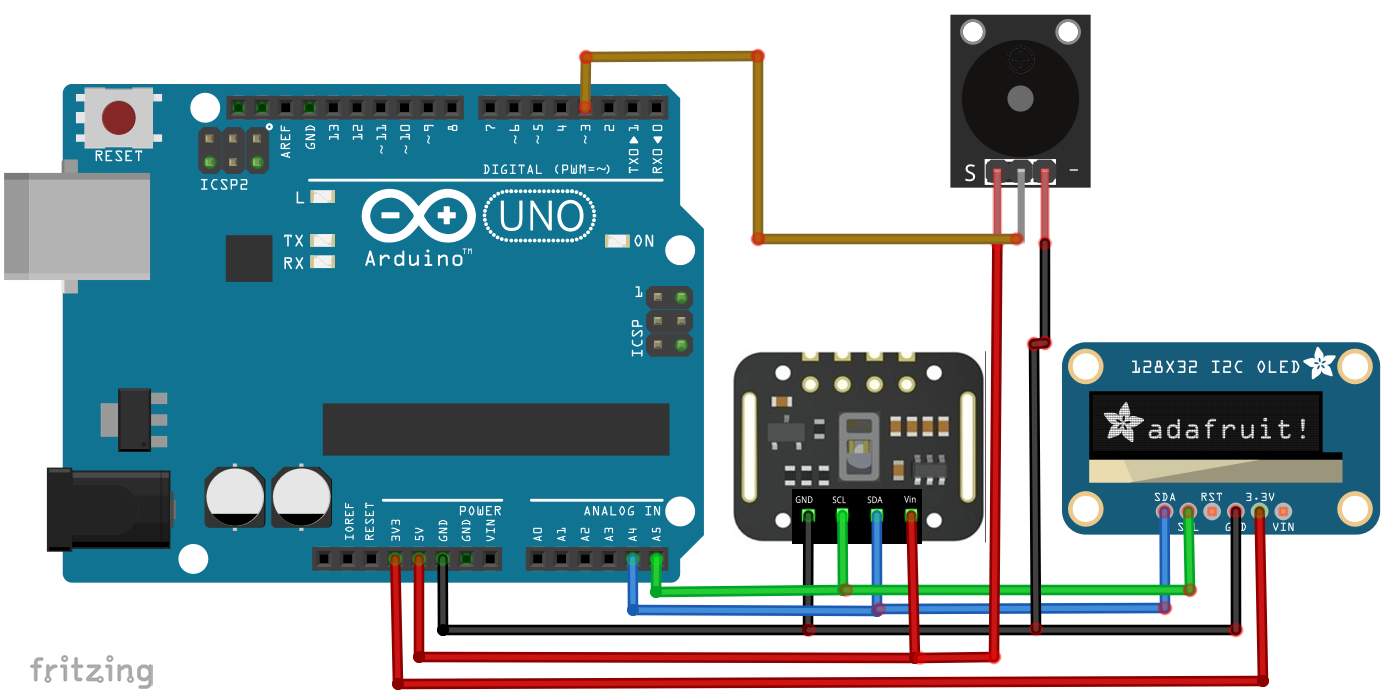
Beide Module haben I²C-Interface. Wenn Sie einen 2-Pin-Summer (-) mit GND und (+) mit Widerstand an D3 nutzen:
Herstellungsprozess
- Integriertes QR-, RFID- und Temperatur-Verifikations-Zugangskontrollsystem
- Mehrere DS18B20 1-Wire Sensoren an Raspberry Pi anschließen für präzises Temperaturmonitoring
- Automatisiertes Aeroponik-System mit Raspberry Pi und Feuchtigkeitssensor bauen
- Fern-Herzfrequenz-Überwachung mit AWS IoT Alarmen
- Roboter mit Raspberry Pi und Python bauen: Komplette Anleitung
- Thermofühler (Thermocouple) mit Arduino Portenta H7 über MAX6675 IC integrieren
- Echtzeit-Gyroskop-Spiel mit Arduino Nano & MPU-6050
- Echtzeit-IoT-Herzfrequenzmonitor mit Arduino & MAX30100
- Präzisen Herzfrequenz-Monitor mit Fotowiderstand und Arduino bauen
- Werkstattplatz maximieren mit Visual Components, Matterport & ProFeeder X Automatisierung