



Arduino-Radar mit Ultraschallsensor & Servo bauen – Schritt-für-Schritt-Anleitung
In diesem Arduino-Tutorial zeigen wir, wie man ein cooles Radar mit Arduino-Board und Processing Development Environment baut. Video ansehen oder schriftliche Anleitung unten lesen.
Überblick
Benötigt: Ultraschallsensor (Objekterkennung), kleiner Hobby-Servomotor (Sensorrotation), Arduino-Board (Steuerung).
Benötigte Komponenten
- Ultraschallsensor HC-SR04
- Servomotor
- Arduino Board
- Steckplatine und Jumper-Kabel
Gerät bauen
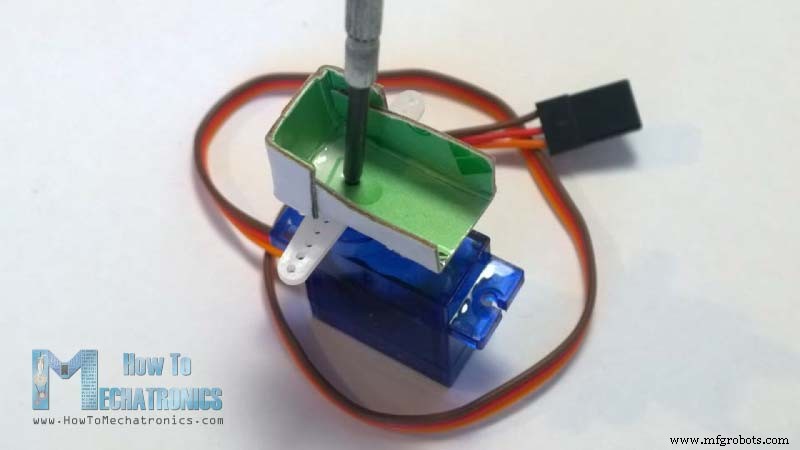
- Zuerst bastelte ich einen Pappständer, um den Ultraschallsensor am Servomotor zu befestigen. Gefaltet wie auf dem Bild, geklebt und mit einer Schraube am Servo gesichert.
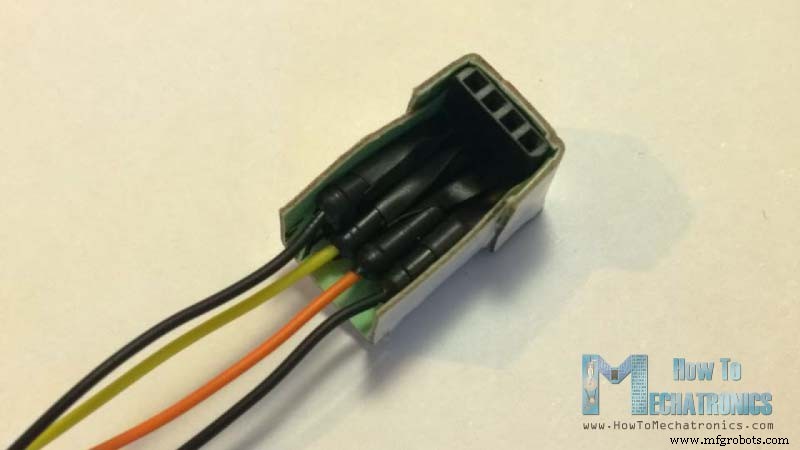
- Zusätzlich lötete ich einen Pin-Header an, an den 4 Jumper-Kabel für den Sensoranschluss kommen.
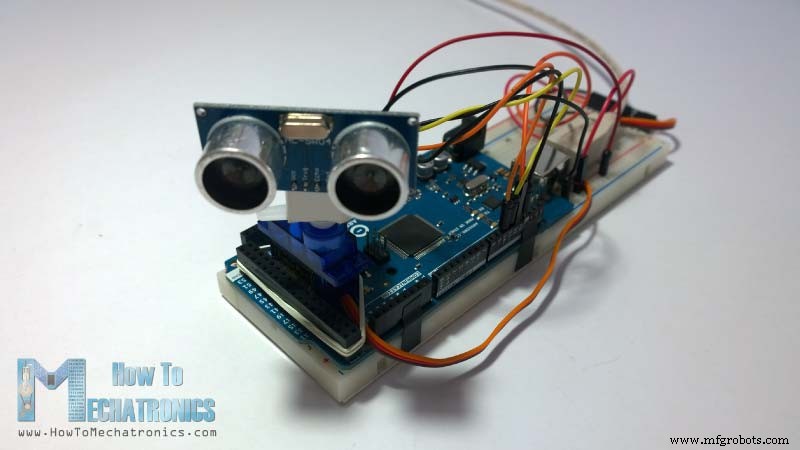
- Zum Schluss befestigte ich den Servomotor mit einem Gummiband am Arduino-Board.
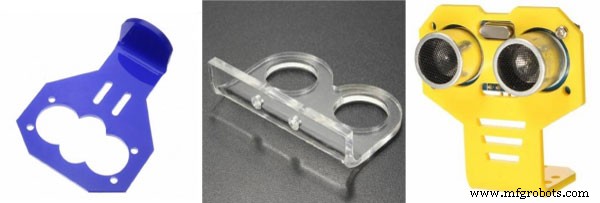
Es gibt auch spezielle Halterungen für den Ultraschallsensor von Banggood:
- Ultraschallsensor mit Montagehalterung
- Montagehalterung für Ultraschall-Entfernungsmesser Banggood
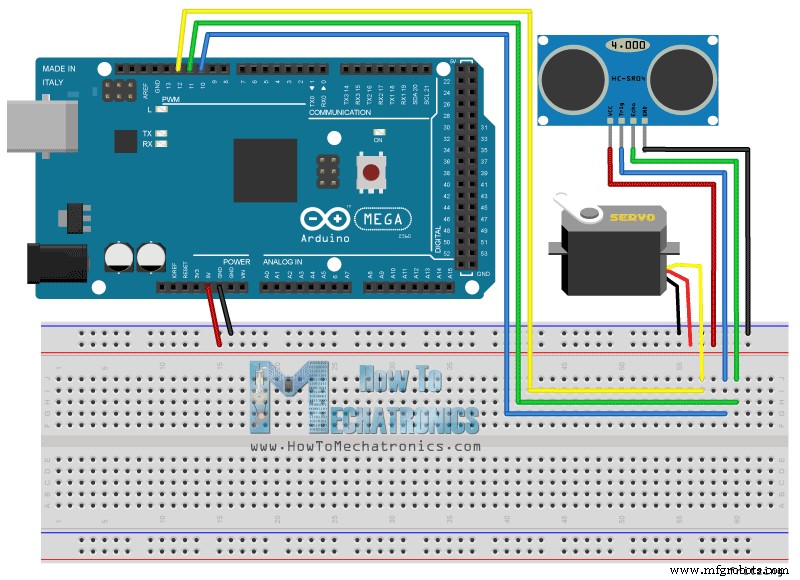
Arduino-Radar Schaltplan
Ich habe den HC-SR04 an Pin 10 (Trig) und Pin 11 (Echo) sowie den Servomotor an Pin 12 angeschlossen.
Quellcodes
Nun brauchen wir Code für die Arduino-Processing-Interaktion. Zur Funktionsweise siehe mein Arduino-Processing-Tutorial.
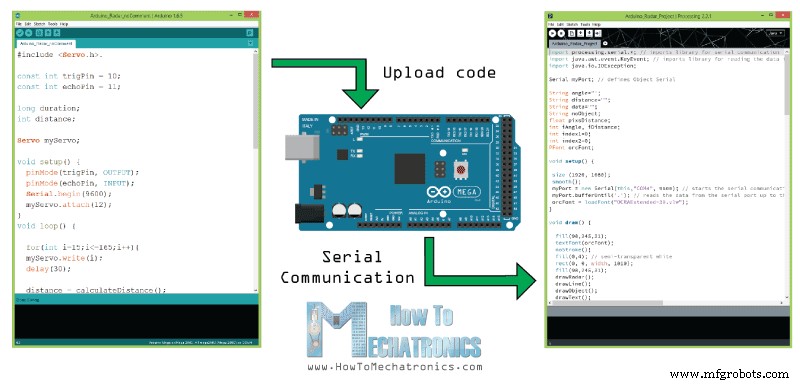
Arduino-Quellcode mit Zeilenkommentaren:
// Servo-Bibliothek einbinden
#include <Servo.h>
// Trig und Echo Pins des Ultraschallsensors
const int trigPin = 10;
const int echoPin = 11;
// Variablen für Dauer und Distanz
long duration;
int distance;
Servo myServo; // Servo-Objekt

void setup() {
  pinMode(trigPin, OUTPUT);
  pinMode(echoPin, INPUT);
  Serial.begin(9600);
  myServo.attach(12); // Servo an Pin 12
}

void loop() {
  // Servo von 15 bis 165 Grad drehen
  for(int i=15; i<=165; i++) {
    myServo.write(i);
    delay(30);
    distance = calculateDistance(); // Distanz für jeden Grad berechnen
    Serial.print(i); // Winkel senden
    Serial.print(","); // Trennzeichen für Processing
    Serial.print(distance); // Distanz senden
    Serial.print("."); // Endzeichen für Processing
  }
  // Rückwärts von 165 bis 15 Grad
  for(int i=165; i>15; i--) {
    myServo.write(i);
    delay(30);
    distance = calculateDistance();
    Serial.print(i);
    Serial.print(",");
    Serial.print(distance);
    Serial.print(".");
  }
}

// Distanzberechnung mit Ultraschallsensor
int calculateDistance() {
  digitalWrite(trigPin, LOW);
  delayMicroseconds(2);
  digitalWrite(trigPin, HIGH);
  delayMicroseconds(10);
  digitalWrite(trigPin, LOW);
  duration = pulseIn(echoPin, HIGH); // Laufzeit in Mikrosekunden
  distance = duration * 0.034 / 2; // cm
  return distance;
}
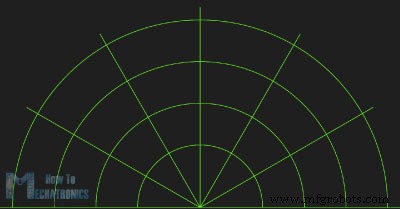
Im Processing IDE empfangen wir Winkel- und Distanzwerte per SerialEvent() und speichern sie in iAngle und iDistance. Diese Variablen dienen zum Zeichnen des Radars, der Linien, erkannter Objekte und Texte.
Für das Radar-Gitter habe ich die Funktion drawRadar() mit arc() und line() erstellt.
void drawRadar() {
  pushMatrix();
  translate(960, 1000); // Koordinatenursprung verschieben
  noFill();
  strokeWeight(2);
  stroke(98, 245, 31); // Grün
  // Bögen zeichnen
  arc(0, 0, 1800, 1800, PI, TWO_PI);
  arc(0, 0, 1400, 1400, PI, TWO_PI);
  arc(0, 0, 1000, 1000, PI, TWO_PI);
  arc(0, 0, 600, 600, PI, TWO_PI);
  // Winkel-Linien
  line(-960, 0, 960, 0);
  line(0, 0, -960*cos(radians(30)), -960*sin(radians(30)));
  line(0, 0, -960*cos(radians(60)), -960*sin(radians(60)));
  line(0, 0, -960*cos(radians(90)), -960*sin(radians(90)));
  line(0, 0, -960*cos(radians(120)), -960*sin(radians(120)));
  line(0, 0, -960*cos(radians(150)), -960*sin(radians(150)));
  line(-960*cos(radians(30)), 0, 960, 0);
  popMatrix();
}
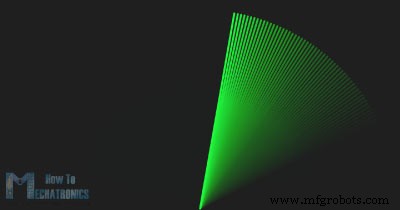
Die bewegte Linie zeichnet drawLine(). Drehzentrum per translate(), Linie mit iAngle.
void drawLine() {
  pushMatrix();
  strokeWeight(9);
  stroke(30, 250, 60);
  translate(960, 1000);
  line(0, 0, 950*cos(radians(iAngle)), -950*sin(radians(iAngle)));
  popMatrix();
}
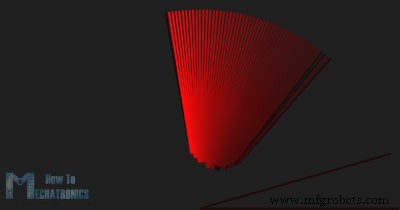
Erkannte Objekte zeichnet drawObject(). Distanz in Pixel umrechnen, mit Winkel Objekt positionieren.
void drawObject() {
  pushMatrix();
  translate(960, 1000);
  strokeWeight(9);
  stroke(255, 10, 10); // Rot
  pixsDistance = iDistance * 22.5; // cm zu Pixel
  // Reichweite auf 40 cm begrenzen
  if(iDistance < 40) {
    line(pixsDistance*cos(radians(iAngle)), -pixsDistance*sin(radians(iAngle)),
         950*cos(radians(iAngle)), -950*sin(radians(iAngle)));
  }
  popMatrix();
}
Texte zeichnet drawText() an festen Positionen.
Alle Funktionen werden in draw() aufgerufen, das kontinuierlich den Bildschirm neu zeichnet. Mit fill(0,4) simuliere ich Bewegungsunschärfe und langsames Ausblenden der Linie.
void draw() {
  fill(98, 245, 31);
  textFont(orcFont);
  // Motion Blur & Fade
  noStroke();
  fill(0, 4);
  rect(0, 0, width, 1010);
  fill(98, 245, 31);
  drawRadar();
  drawLine();
  drawObject();
  drawText();
}
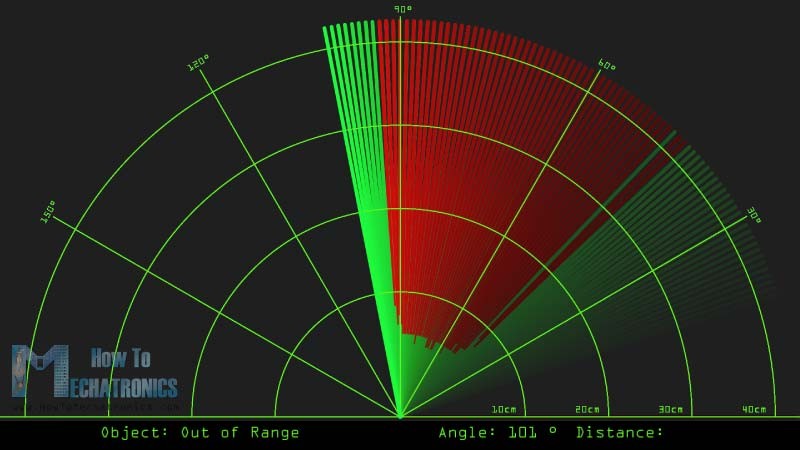
Endgültiges Radar-Aussehen:
Vollständiger Processing-Quellcode des Arduino-Radars
import processing.serial.*;
import java.awt.event.KeyEvent;
import java.io.IOException;

Serial myPort;
String angle = "";
String distance = "";
String data = "";
String noObject;
float pixsDistance;
int iAngle, iDistance;
int index1 = 0;
int index2 = 0;
PFont orcFont;

void setup() {
  size(1920, 1080);
  smooth();
  myPort = new Serial(this, "COM4", 9600);
  myPort.bufferUntil('.');
  orcFont = loadFont("OCRAExtended-30.vlw");
}

void draw() {
  fill(98, 245, 31);
  textFont(orcFont);
  noStroke();
  fill(0, 4);
  rect(0, 0, width, 1010);
  fill(98, 245, 31);
  drawRadar();
  drawLine();
  drawObject();
  drawText();
}

void serialEvent(Serial myPort) {
  data = myPort.readStringUntil('.');
  data = data.substring(0, data.length()-1);
  index1 = data.indexOf(",");
  angle = data.substring(0, index1);
  distance = data.substring(index1+1, data.length());
  iAngle = int(angle);
  iDistance = int(distance);
}

void drawRadar() {
  pushMatrix();
  translate(960, 1000);
  noFill();
  strokeWeight(2);
  stroke(98, 245, 31);
  arc(0, 0, 1800, 1800, PI, TWO_PI);
  arc(0, 0, 1400, 1400, PI, TWO_PI);
  arc(0, 0, 1000, 1000, PI, TWO_PI);
  arc(0, 0, 600, 600, PI, TWO_PI);
  line(-960, 0, 960, 0);
  line(0, 0, -960*cos(radians(30)), -960*sin(radians(30)));
  line(0, 0, -960*cos(radians(60)), -960*sin(radians(60)));
  line(0, 0, -960*cos(radians(90)), -960*sin(radians(90)));
  line(0, 0, -960*cos(radians(120)), -960*sin(radians(120)));
  line(0, 0, -960*cos(radians(150)), -960*sin(radians(150)));
  line(-960*cos(radians(30)), 0, 960, 0);
  popMatrix();
}

void drawObject() {
  pushMatrix();
  translate(960, 1000);
  strokeWeight(9);
  stroke(255, 10, 10);
  pixsDistance = iDistance * 22.5;
  if(iDistance < 40) {
    line(pixsDistance*cos(radians(iAngle)), -pixsDistance*sin(radians(iAngle)),
         950*cos(radians(iAngle)), -950*sin(radians(iAngle)));
  }
  popMatrix();
}

void drawLine() {
  pushMatrix();
  strokeWeight(9);
  stroke(30, 250, 60);
  translate(960, 1000);
  line(0, 0, 950*cos(radians(iAngle)), -950*sin(radians(iAngle)));
  popMatrix();
}

void drawText() {
  pushMatrix();
  if(iDistance > 40) noObject = "Out of Range";
  else noObject = "In Range";
  fill(0, 0, 0);
  noStroke();
  rect(0, 1010, width, 1080);
  fill(98, 245, 31);
  textSize(25);
  text("10cm", 1180, 990);
  text("20cm", 1380, 990);
  text("30cm", 1580, 990);
  text("40cm", 1780, 990);
  textSize(40);
  text("Object: " + noObject, 240, 1050);
  text("Angle: " + iAngle + " °", 1050, 1050);
  text("Distance: ", 1380, 1050);
  if(iDistance < 40) text(" " + iDistance + " cm", 1400, 1050);
  textSize(25);
  fill(98, 245, 60);
  translate(961+960*cos(radians(30)), 982-960*sin(radians(30)));
  rotate(-radians(-60));
  text("30°", 0, 0);
  resetMatrix();
  translate(954+960*cos(radians(60)), 984-960*sin(radians(60)));
  rotate(-radians(-30));
  text("60°", 0, 0);
  resetMatrix();
  translate(945+960*cos(radians(90)), 990-960*sin(radians(90)));
  rotate(radians(0));
  text("90°", 0, 0);
  resetMatrix();
  translate(935+960*cos(radians(120)), 1003-960*sin(radians(120)));
  rotate(radians(-30));
  text("120°", 0, 0);
  resetMatrix();
  translate(940+960*cos(radians(150)), 1018-960*sin(radians(150)));
  rotate(radians(-60));
  text("150°", 0, 0);
  popMatrix();
}
Neue aktualisierte Version des Arduino-Radar-Codes für beliebige Bildschirmauflösungen
Ändern Sie einfach die Werte in der size()-Funktion auf Ihre Bildschirmauflösung.
/* Arduino Radar Projekt
 * Aktualisierte Version. Passt auf jede Bildschirmauflösung!
 * Ändern Sie einfach die Werte in size() auf Ihre Auflösung.
 * von Dejan Nedelkovski, www.HowToMechatronics.com
 */
import processing.serial.*;
import java.awt.event.KeyEvent;
import java.io.IOException;

Serial myPort;
String angle = "";
String distance = "";
String data = "";
String noObject;
float pixsDistance;
int iAngle, iDistance;
int index1 = 0;
int index2 = 0;
PFont orcFont;

void setup() {
  size(1920, 1080); // ***HIER IHRE BILDSCHIRMAUFLÖSUNG EINTRAGEN***
  smooth();
  myPort = new Serial(this, "COM4", 9600);
  myPort.bufferUntil('.');
  orcFont = loadFont("OCRAExtended-30.vlw");
}

void draw() {
  fill(98, 245, 31);
  textFont(orcFont);
  noStroke();
  fill(0, 4);
  rect(0, 0, width, height - height*0.065);
  fill(98, 245, 31);
  drawRadar();
  drawLine();
  drawObject();
  drawText();
}

void serialEvent(Serial myPort) {
  data = myPort.readStringUntil('.');
  data = data.substring(0, data.length()-1);
  index1 = data.indexOf(",");
  angle = data.substring(0, index1);
  distance = data.substring(index1+1, data.length());
  iAngle = int(angle);
  iDistance = int(distance);
}

void drawRadar() {
  pushMatrix();
  translate(width/2, height - height*0.074);
  noFill();
  strokeWeight(2);
  stroke(98, 245, 31);
  arc(0, 0, (width-width*0.0625), (width-width*0.0625), PI, TWO_PI);
  arc(0, 0, (width-width*0.27), (width-width*0.27), PI, TWO_PI);
  arc(0, 0, (width-width*0.479), (width-width*0.479), PI, TWO_PI);
  arc(0, 0, (width-width*0.687), (width-width*0.687), PI, TWO_PI);
  line(-width/2, 0, width/2, 0);
  line(0, 0, (-width/2)*cos(radians(30)), (-width/2)*sin(radians(30)));
  line(0, 0, (-width/2)*cos(radians(60)), (-width/2)*sin(radians(60)));
  line(0, 0, (-width/2)*cos(radians(90)), (-width/2)*sin(radians(90)));
  line(0, 0, (-width/2)*cos(radians(120)), (-width/2)*sin(radians(120)));
  line(0, 0, (-width/2)*cos(radians(150)), (-width/2)*sin(radians(150)));
  line((-width/2)*cos(radians(30)), 0, width/2, 0);
  popMatrix();
}

void drawObject() {
  pushMatrix();
  translate(width/2, height - height*0.074);
  strokeWeight(9);
  stroke(255, 10, 10);
  pixsDistance = iDistance * ((height - height*0.1666) * 0.025);
  if(iDistance < 40) {
    line(pixsDistance*cos(radians(iAngle)), -pixsDistance*sin(radians(iAngle)),
         (width-width*0.505)*cos(radians(iAngle)), -(width-width*0.505)*sin(radians(iAngle)));
  }
  popMatrix();
}

void drawLine() {
  pushMatrix();
  strokeWeight(9);
  stroke(30, 250, 60);
  translate(width/2, height - height*0.074);
  line(0, 0, (height-height*0.12)*cos(radians(iAngle)), -(height-height*0.12)*sin(radians(iAngle)));
  popMatrix();
}

void drawText() {
  pushMatrix();
  if(iDistance > 40) noObject = "Out of Range";
  else noObject = "In Range";
  fill(0, 0, 0);
  noStroke();
  rect(0, height - height*0.0648, width, height);
  fill(98, 245, 31);
  textSize(25);
  text("10cm", width-width*0.3854, height-height*0.0833);
  text("20cm", width-width*0.281, height-height*0.0833);
  text("30cm", width-width*0.177, height-height*0.0833);
  text("40cm", width-width*0.0729, height-height*0.0833);
  textSize(40);
  text("Object: " + noObject, width-width*0.875, height-height*0.0277);
  text("Angle: " + iAngle + " °", width-width*0.48, height-height*0.0277);
  text("Distance: ", width-width*0.26, height-height*0.0277);
  if(iDistance < 40) text(" " + iDistance + " cm", width-width*0.225, height-height*0.0277);
  textSize(25);
  fill(98, 245, 60);
  translate((width-width*0.4994)+width/2*cos(radians(30)), (height-height*0.0907)-width/2*sin(radians(30)));
  rotate(-radians(-60));
  text("30°", 0, 0);
  resetMatrix();
  translate((width-width*0.503)+width/2*cos(radians(60)), (height-height*0.0888)-width/2*sin(radians(60)));
  rotate(-radians(-30));
  text("60°", 0, 0);
  resetMatrix();
  translate((width-width*0.507)+width/2*cos(radians(90)), (height-height*0.0833)-width/2*sin(radians(90)));
  rotate(radians(0));
  text("90°", 0, 0);
  resetMatrix();
  translate(width-width*0.513+width/2*cos(radians(120)), (height-height*0.07129)-width/2*sin(radians(120)));
  rotate(radians(-30));
  text("120°", 0, 0);
  resetMatrix();
  translate((width-width*0.5104)+width/2*cos(radians(150)), (height-height*0.0574)-width/2*sin(radians(150)));
  rotate(radians(-60));
  text("150°", 0, 0);
  popMatrix();
}
Herstellungsprozess
- Monitor-Ambilight selbst bauen mit Arduino Nano & WS2812B LEDs
- Klassisches Pong-Spiel auf Arduino UNO mit OLED-Display bauen – Schritt-für-Schritt-Tutorial
- Servogesteuerter Hindernisvermeidungs-Roboter: Bauen mit Arduino & HC-SR04
- Arduino Audio-Frequenz-Detektor – Lauteste Schallpeaks mit hochsensiblem Modul messen
- Selbstbau-Tamagotchi: Digitales Haustier mit Arduino
- Intelligenter kabelloser Lichtschalter-Controller: Arduino-basierter Fernschalter-Manipulator
- Arduino Tic Tac Toe mit MAX7219 LED-Matrix und Karton-Gehäuse
- Intelligente, bewegungsaktivierte Wasserpistole mit Arduino Nano
- Zuverlässigen Arduino-Countdown-Timer mit SparkFun 7-Segment-Display bauen
- Arduino-Sonnenblume: Elektronischer Sonnen-Tracker selbst bauen